
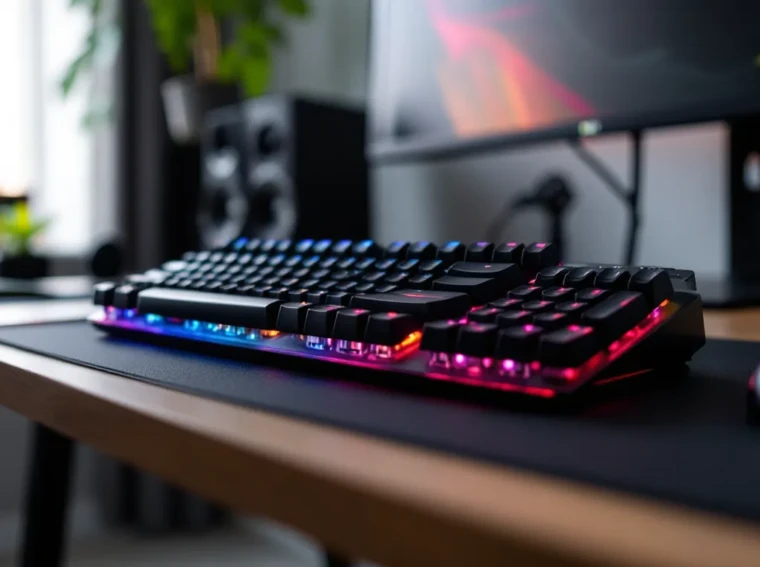
Budget gaming keyboards have come a long way since the days of mushy rubber domes and non-existent RGB. The Corsair K55 RGB Pro sits in that tricky middle ground where price meets performance, promising a decent gaming experience without the mechanical switch tax. At around $60-70, it’s positioned to catch gamers who want Corsair’s ecosystem and RGB flair but aren’t ready to drop triple digits on a keyboard.
But here’s the question: in 2026, with mechanical boards creeping down in price and competition fiercer than ever, does the K55 RGB Pro still deserve a spot on your desk? This review digs into the nitty-gritty, build quality, actual gaming performance across different genres, RGB customization, and how it stacks against similarly priced competitors. Whether you’re building your first setup or looking for a reliable backup board, let’s see if this membrane keyboard can still hang.
Key Takeaways
- The Corsair K55 RGB Pro delivers solid value at $60-70 for budget-conscious gamers, combining dedicated media controls, IP42 spill resistance, and iCUE ecosystem integration in a full-size membrane keyboard.
- Membrane switches feel mushy with no tactile feedback, making the K55 RGB Pro adequate for casual gaming and MMOs but limiting for competitive FPS and high-APM players who need mechanical responsiveness.
- Three-zone RGB lighting provides decent customization but falls short compared to per-key RGB on similarly priced competitors like the Razer Cynosa V2, restricting custom color patterns.
- The K55 RGB Pro’s 10 million keystroke durability is reasonable for 2-4 years of regular use, but non-detachable cables and ABS keycaps that develop shine are long-term drawbacks.
- Corsair’s iCUE software offers impressive ecosystem integration for existing Corsair gear owners but adds 150-300MB RAM usage and occasional bloat, making it heavier than competitors like Razer Synapse.
- Ideal for office workers, MMO players, and casual gamers who prioritize convenience features and quiet operation over mechanical switch performance and durability.
What Is the Corsair K55 RGB Pro?
The Corsair K55 RGB Pro is a full-size membrane gaming keyboard that launched as Corsair’s entry-level offering for gamers who want the brand’s software ecosystem without the premium price tag. It’s not mechanical, which immediately sets expectations, you’re getting rubber dome switches under those keycaps, not Cherry MX Reds or custom switches.
What sets it apart from generic office keyboards is its gaming-focused feature set: customizable RGB backlighting across multiple zones, dedicated media controls, programmable macro keys via Corsair’s iCUE software, and IP42 dust and spill resistance. It’s available on PC exclusively (no native console support, though you could technically use it with compatible adapters), and it connects via USB cable, no wireless option here.
Corsair positions this as a “true performance” gaming keyboard at a budget price, which is marketing-speak for “it does more than a basic membrane board but don’t expect mechanical-tier responsiveness.”
Key Specifications and Features
Here’s what you’re getting out of the box:
- Switch Type: Rubber dome membrane
- Key Rollover: 6-key rollover with anti-ghosting
- RGB Lighting: Three-zone RGB backlighting (customizable via iCUE)
- Layout: Full-size (104-key US layout, 105-key UK/EU available)
- Connectivity: USB 2.0, non-detachable cable (approx. 1.8m)
- Macro Keys: 12 programmable keys via software (no dedicated macro column)
- Media Controls: Six dedicated media keys plus volume roller
- Durability Rating: IP42 dust and spill resistance
- Polling Rate: 1000Hz
- Dimensions: 463mm x 166mm x 35mm
- Weight: Approximately 850g
- Compatibility: Windows 10/11, iCUE software required for advanced features
- Warranty: 2-year limited
The spec sheet looks solid on paper for the price. The 1000Hz polling rate matches what you’d find on mechanical boards, and 6-key rollover should handle most gaming scenarios (though full N-key rollover would’ve been nice). The dedicated media controls are a standout feature at this price point, something even pricier boards sometimes skip.
Design and Build Quality
The K55 RGB Pro doesn’t try to hide what it is. This is a plastic-bodied, budget-oriented keyboard, and Corsair made some smart choices to keep it from feeling cheap even though the price.
Construction and Materials
The chassis is all plastic, no aluminum top plate here. The matte black finish resists fingerprints decently well, though it will show dust over time. The plastic feels sturdy enough: there’s minimal flex when you press down on the keyboard deck, which is impressive for a sub-$70 board.
Keycaps are ABS plastic with laser-etched legends that let the RGB shine through. ABS will develop shine over time with heavy use, that’s just physics. The legends are crisp and clear, using Corsair’s standard sans-serif font (nothing fancy, but perfectly readable).
The non-detachable USB cable is a minor annoyance for portability, and the permanently attached cable routing could limit cable management options. The cable itself is rubber-sheathed, not braided, which keeps costs down but feels a step behind what some competitors offer.
Rubber feet on the bottom provide decent grip on most desk surfaces. There are two-stage flip-out feet for height adjustment (4° and 8° angles), which is standard fare. No USB passthrough or additional ports, which is expected at this tier.
Layout and Ergonomics
It’s a full-size layout with standard key spacing and sizes, no weird proprietary layouts or undersized keys. The numpad is present and accounted for, which matters if you play MMOs or anything requiring extensive keybinds.
The typing angle without the feet extended is fairly flat, around 3°. Some users will want to pop those feet up immediately: others will prefer the low profile. The keyboard sits at about 35mm tall at its highest point (rear edge), which is relatively low-profile for a full-size board.
Key travel is around 3.8mm with an actuation point roughly halfway down, typical membrane specs. The keys have a gentle concave curve that helps with finger positioning, though they’re not as deeply sculpted as some premium boards.
There’s no wrist rest included. For extended gaming or typing sessions, you’ll probably want to grab an aftermarket one. The front edge has a slight lip that can dig into your palms during marathon sessions without support.
The dedicated media controls sit in the upper-right corner: play/pause, stop, back, forward, mute, and a chunky volume roller. The roller has a satisfying tactile bump and decent resistance, it doesn’t feel like it’ll break off if you get aggressive with it. These controls work at the hardware level, so they function even without iCUE running.
Typing and Gaming Performance
This is where the membrane switch reality sets in. The K55 RGB Pro delivers exactly what you’d expect from a quality rubber dome keyboard, which is both good and limiting depending on your experience level.
Membrane Switch Feel and Responsiveness
The switches have a soft, cushioned bottom-out with no tactile bump during the press. It’s a smooth, linear descent until you hit the rubber dome, which collapses with a slightly mushy feel. There’s minimal feedback to let you know when you’ve actuated, you basically press until you hit the bottom.
Actuation force is around 60-65g based on feel (Corsair doesn’t publish exact specs). That’s slightly heavier than most mechanical switches, which can lead to finger fatigue during extended typing sessions or intense gaming.
The lack of tactile feedback means you’ll bottom out on every keystroke. This makes the board quieter than most mechanical options, office-friendly, for sure, but you lose that crisp, responsive feel that gamers often prefer. Sound-wise, it’s a muted thock with each press, not unpleasant but definitely not exciting.
Typing speed and accuracy are decent once you adjust to the membrane feel. If you’re coming from a mechanical board, expect an adjustment period. The soft landing reduces finger strain compared to typing on a hard desk, but the lack of feedback can slow down touch typists who rely on tactile confirmation.
For casual typing, emails, and general productivity, it’s perfectly serviceable. For competitive typing or if you’re a mechanical keyboard enthusiast, you’ll notice the compromises immediately.
Gaming Experience Across Different Genres
Performance varies significantly depending on what you’re playing:
FPS Games (CS2, Valorant, Call of Duty): The K55 holds up reasonably well. The 1000Hz polling rate ensures minimal input lag, and 6-key rollover handles WASD movement plus ability keys without ghosting. The slightly heavier actuation force means fewer accidental presses during tense moments, which can be a plus.
But, the mushy bottom-out and lack of immediate feedback can affect rapid strafing or precise movement. Players who counter-strafe in CS2 might find the membrane switches less responsive than linear mechanical switches. For casual FPS play, it’s fine. For competitive ranked grinding, you’re leaving performance on the table.
MOBA/RTS (League of Legends, Dota 2, StarCraft II): This is where the membrane switches start to show limitations. Games requiring rapid ability combos or high APM (actions per minute) feel less crisp. The lack of tactile feedback makes it harder to execute precise spell rotations without looking down.
The full-size layout works in your favor here, plenty of room for keybinds and macros. The programmable keys (more on that later) help customize your setup for specific champions or unit groups. But if you’re a Diamond+ player or serious about competitive RTS, the switch feel will hold you back compared to mechanical alternatives.
MMOs (Final Fantasy XIV, WoW, ESO): Surprisingly well-suited for MMO play. The full keyset gives you tons of binding options, and MMOs rarely require the lightning-fast inputs that expose membrane limitations. The quieter operation is a bonus during long raid nights with voice chat running.
The dedicated media controls are clutch here, adjust Discord volume mid-boss fight without tabbing out. The IP42 rating also provides peace of mind during those marathon raid sessions with snacks and drinks nearby.
Action/Adventure, RPG: Perfect for these genres. Games like Elden Ring, The Witcher, or similar titles don’t stress the keyboard’s limitations. The softer key feel is actually comfortable during extended play sessions, and the full RGB adds ambiance without distraction.
Bottom line: The K55 RGB Pro won’t hold back casual gamers or those playing less twitch-intensive genres. Competitive players in fast-paced games will feel the membrane compromises, especially if they’ve experienced quality mechanical switches. Many reviewers on PCMag note similar performance tiers when evaluating budget gaming peripherals.
RGB Lighting and Customization Options
RGB is half the reason anyone buys a “gaming” keyboard, so let’s talk lights.
Lighting Zones and Effects
The K55 RGB Pro features three-zone RGB backlighting, which is… fine. It’s not per-key RGB, so you can’t create intricate patterns or react to in-game events with individual key colors. Instead, you get three horizontal zones (left, middle, right) that can each display a different color or effect.
This limitation becomes obvious when you try to create specific color schemes. Want WASD in red while everything else is blue? Can’t do it, at least not without the entire left zone being red. Want to highlight ability keys with a specific color? Nope, zone-based only.
The LEDs themselves are bright and vibrant with decent color accuracy. White looks properly white, not the bluish tint you sometimes get on cheap RGB implementations. The backlighting shines through the keycap legends cleanly without excessive bleed around the edges.
Brightness levels are adjustable through iCUE (more on that below) or via onboard controls (Fn + arrow keys). The dimmer settings are genuinely dim, which is great for late-night gaming without flashbanging yourself. Max brightness is visible in daylight conditions, though direct sunlight will wash it out.
The lighting effects library includes:
- Static (solid color per zone)
- Rainbow wave (cycles through color spectrum)
- Color shift (gradual transitions between chosen colors)
- Pulse (breathing effect)
- Rain (downward raindrop pattern)
- Visor (scanning line effect)
- Custom patterns (limited by three-zone restriction)
Effects look decent but lack the complexity and fluidity you get with per-key RGB. The rainbow wave, for instance, transitions in chunks rather than smoothly across the entire keyboard. It’s the RGB equivalent of a 720p video, gets the job done, but you can see the limitations.
iCUE Software Integration
Corsair’s iCUE software (currently version 5.x in 2026) is both the K55 RGB Pro’s greatest strength and occasional frustration.
On the plus side, iCUE is mature, feature-rich software that syncs RGB across all your Corsair gear. If you’ve got a Corsair mouse, headset, or RAM, everything can pulse and shift colors in harmony. The ecosystem integration is genuinely impressive, create a lighting profile that spans your entire setup with relative ease.
The interface is reasonably intuitive once you spend time with it. You can create multiple lighting profiles and switch between them based on which game you’re playing or activity you’re doing. Profiles can be linked to specific applications, so launching CS2 might trigger your competitive blue-and-white setup while opening Spotify switches to a chill purple wave.
But, iCUE has a reputation for bloat. The software isn’t lightweight, it’ll use 150-300MB of RAM while running, which is absurd for keyboard firmware. Some users report occasional bugs, crashes, or lighting profiles not loading correctly after Windows updates. It’s improved significantly from earlier versions, but it’s still heavier than competitors like Razer Synapse or Logitech G Hub.
The three-zone limitation means you can’t take full advantage of some of iCUE’s cooler features. Game integration effects that react to health, ammo, or cooldowns work better with per-key RGB boards. With the K55, you get zone-level reactions at best, which feels like watching a movie with half the screen blurred.
One nice touch: the K55 has onboard memory for one lighting profile. This means basic RGB will work without iCUE running, though you’ll lose complex effects and macro functionality.
If you’re already invested in the Corsair ecosystem, maybe you’ve got a MSI Z790 Gaming Pro board with Corsair components, the iCUE integration makes perfect sense. If this is your first Corsair product, prepare to install relatively chunky software for basic keyboard customization.
Macro Programming and Advanced Features
Macro support is where budget keyboards often cut corners, but Corsair delivers here, at least in capability if not execution.
Setting Up Macros for Competitive Play
The K55 RGB Pro doesn’t have dedicated macro keys like some gaming boards, but any of the standard keys can be remapped or assigned macros via iCUE. This gives you up to 12 programmable keys (F1-F12 are common choices) or more if you’re willing to sacrifice other keys.
Setting up macros in iCUE is straightforward:
- Open iCUE and select the K55 RGB Pro
- Navigate to the Actions tab
- Create a new macro by recording keystrokes or typing commands manually
- Assign the macro to any key on the keyboard
- Save the profile
You can record macros with specific delays between keypresses, which is crucial for games that require precise timing. For example, a League of Legends combo that needs 0.1s between abilities can be programmed with exact millisecond delays.
Macro types include:
- Simple keystroke macros (single key replacement)
- Multi-key combos (press one key, execute multiple commands)
- Delayed sequences (timed ability rotations)
- Text macros (type out phrases or commands)
- Media controls (launch applications, adjust settings)
The reality is that macro utility depends heavily on what you play. MMO players will use this constantly, setting up complex rotation macros or chat commands. FPS players might set up quick buy binds or utility uses. Single-player gamers might not touch macros at all.
One limitation: anti-cheat systems in competitive games often flag or block macro usage. Don’t try to set up spray-control macros in Valorant or recoil-reduction scripts in competitive FPS titles, you risk bans. Keep macros to legitimate quality-of-life improvements and non-competitive scenarios.
Media Controls and Additional Functionality
The six dedicated media keys are one of the K55’s best features at this price point. They sit in the upper-right corner and include:
- Play/Pause
- Stop
- Previous Track
- Next Track
- Mute
- Volume Roller
These work at the hardware level, meaning they function without iCUE running and work across any media application (Spotify, YouTube, VLC, Discord, etc.). The volume roller is particularly satisfying, it has notched resistance so each increment clicks, giving precise control.
Having these controls accessible without Alt+Tabbing or using Fn combinations is legitimately useful during gaming. Teammate being loud in Discord? Twist the volume roller down without interrupting gameplay. Spotify playing between matches? Skip tracks with one button press.
Additional functionality includes:
- Windows Key Lock (Fn + Win disables the Windows key to prevent accidental desktop jumps during gaming)
- Lighting shortcuts (Fn + F5-F9 for brightness, effects, and speed adjustments)
- Game Mode (customizable in iCUE to disable specific keys)
The Fn key shortcuts work fine but would’ve been better with indicator LEDs. There’s no visual confirmation when Windows key lock is active, so you just have to remember or test it.
Durability and Long-Term Reliability
Membrane keyboards have a reputation for shorter lifespans than mechanical boards, but the K55 RGB Pro includes some features to help it survive longer.
IP42 Dust and Spill Resistance
The IP42 rating breaks down like this:
- IP4X (dust protection): Protected against solid objects greater than 1mm. Not fully dust-tight, but should keep out most debris from normal use.
- IPX2 (water protection): Protected against dripping water when tilted up to 15 degrees. This means minor spills, like a tipped water glass, shouldn’t immediately kill the board.
This isn’t IP68 waterproof-grade protection. Dumping a full can of soda on the keyboard will likely end badly. But the occasional splash from a water bottle or coffee mug should be survivable if you act quickly (unplug, flip it upside down, let it dry).
Testing hardware on Tom’s Hardware often includes durability assessments, and IP42-rated peripherals generally withstand typical gaming-desk accidents better than unrated boards.
The membrane switches themselves are rated for approximately 10 million keystrokes per key. That sounds impressive until you compare it to mechanical switches rated for 50-100 million keystrokes. In practical terms, 10 million is still several years of heavy use for most gamers, but competitive players who hammer keys constantly might see degradation sooner.
Keycap legends are laser-etched and backlit, which should resist fading better than pad-printed legends. But, ABS plastic keycaps will develop shine with use, there’s no avoiding that. After 6-12 months of heavy gaming, expect WASD and commonly used keys to look glossier than the rest.
The USB cable connection point feels solid with no wiggle. The cable itself is reasonably thick (around 5mm diameter) and shouldn’t fray easily with normal use. The permanently attached cable is a vulnerability point, if it gets damaged, you can’t just swap in a new one.
Corsair backs the K55 RGB Pro with a 2-year limited warranty, which is standard for peripherals in this price range. That’s half the warranty period of their premium mechanical boards (usually 3-5 years), reflecting the expected lifespan difference.
Real-world longevity reports are generally positive. Users on forums and Reddit report the keyboard lasting 2-4 years with regular use before switches start feeling inconsistent or LEDs begin failing. That’s reasonable for a budget board, though you shouldn’t expect this to be a decade-long investment like some mechanical keyboards can be.
How the K55 RGB Pro Compares to Competitors
The sub-$75 keyboard market is crowded, and the K55 RGB Pro faces stiff competition from both membrane and budget mechanical options.
K55 RGB Pro vs. Razer Cynosa V2
The Razer Cynosa V2 is the K55’s most direct competitor, priced similarly and targeting the same audience.
Similarities:
- Both are membrane switches with soft, cushioned feel
- Both feature customizable RGB (Cynosa V2 has per-key RGB, a significant advantage)
- Both include dedicated media keys
- Both offer macro programming via software (Razer Synapse vs. iCUE)
- Similar build quality, plastic construction, non-detachable cables
Key differences:
- RGB: Cynosa V2 wins with per-key RGB vs. K55’s three-zone limitation
- Software: Synapse is lighter than iCUE but less feature-rich
- Spill resistance: K55 has IP42 rating: Cynosa V2 has spill-resistant design but no IP rating
- Keycaps: Slightly different font styles and sculpting (mostly preference)
- Ecosystem: Choose based on what other peripherals you own
Verdict: If RGB customization matters and you want per-key control, the Cynosa V2 is the better pick. If you’re already in the Corsair ecosystem or prioritize the IP42 rating, stick with the K55. Performance-wise, they’re nearly identical, both deliver membrane switch experiences with similar limitations.
K55 RGB Pro vs. Logitech G213 Prodigy
The Logitech G213 Prodigy has been around longer but remains a popular budget option.
Similarities:
- Membrane switches (Logitech calls them “Mech-Dome” for marketing purposes, but they’re still rubber domes)
- RGB backlighting (five lighting zones on the G213)
- Media controls included
- Similar pricing
- Spill-resistant design
Key differences:
- RGB zones: G213 has five zones vs. K55’s three (still not per-key)
- Switch feel: G213’s “Mech-Dome” switches have slightly more tactile feedback
- Software: Logitech G Hub vs. iCUE (both have pros and cons)
- Aesthetics: G213 has more angular, aggressive styling with white accent lighting: K55 is more understated
- Palm rest: G213 has an integrated palm rest: K55 doesn’t
Verdict: The G213 offers slightly better value with the integrated palm rest and five lighting zones. The “Mech-Dome” switches feel marginally better than standard membrane but don’t match true mechanical switches. If you want a palm rest and prefer Logitech’s ecosystem, go G213. If you want cleaner aesthetics and better software ecosystem integration (assuming you have other Corsair gear), the K55 fits better.
K55 RGB Pro vs. Mechanical Keyboards in the Same Price Range
Here’s where things get interesting. In 2026, you can find entry-level mechanical keyboards in the $60-80 range, which directly challenges membrane boards like the K55.
Options include:
- Redragon K552 Kumara (~$40-50): 60% mechanical board with Outemu switches, no RGB (or limited RGB on some versions)
- Royal Kludge RK61 (~$50-60): 60% mechanical, hot-swappable switches, RGB
- HyperX Alloy Core RGB (~$50): Full-size mechanical with HyperX Red switches
These boards offer:
Pros vs. K55:
- True mechanical switches with better feel and responsiveness
- Higher keystroke durability ratings (50M+ vs. 10M)
- Customization potential (hot-swappable switches on some models)
- Better gaming performance, especially for competitive play
Cons vs. K55:
- Often missing media controls
- Less mature software ecosystems (or no software at all)
- No spill resistance ratings
- Smaller form factors (60-75%) mean no numpad
- Build quality can be hit-or-miss from lesser-known brands
- Louder operation (important for shared spaces)
Verdict: If performance and switch feel are your priorities, and you’re willing to sacrifice features like dedicated media controls, software integration, or full-size layout, budget mechanical keyboards offer better value. The switch feel alone makes a noticeable difference in gaming responsiveness.
But, if you want the complete package (full-size layout, media controls, ecosystem integration, quieter operation), the K55 RGB Pro delivers features that budget mechanical boards often skip. It’s less about raw performance and more about convenience and feature set.
For audiophile gamers, pairing solid peripherals with quality audio gear like the DT 990 Pro can elevate the overall gaming experience beyond just keyboard choice.
Pros and Cons of the Corsair K55 RGB Pro
Let’s break down what works and what doesn’t.
Pros:
- Excellent value for ecosystem buyers: If you already own Corsair peripherals or components, iCUE integration makes this a no-brainer.
- Dedicated media controls: Six media keys plus volume roller work flawlessly and add genuine convenience.
- IP42 dust and spill resistance: Added peace of mind for accident-prone gamers.
- Quiet operation: Membrane switches are office-friendly and won’t wake roommates during late-night sessions.
- Full-size layout: Numpad and full keyset provide maximum binding options for MMOs and productivity.
- Decent RGB (for the limitations): Three zones look good even if they’re not per-key.
- Comfortable for long sessions: Soft key feel reduces finger fatigue compared to harder mechanical switches.
- Onboard profile storage: Basic lighting works without software running.
- Clean aesthetics: Understated design fits both gaming setups and professional workspaces.
- Good warranty: 2-year coverage is standard but appreciated.
Cons:
- Membrane switches feel mushy: No tactile feedback means less precise input, especially noticeable for competitive gamers.
- Only three RGB zones: Significant limitation compared to per-key RGB competitors at similar prices.
- iCUE software bloat: Heavy resource usage for basic keyboard functions.
- Lower keystroke durability: 10M keystrokes vs. 50-100M on mechanical switches.
- Non-detachable cable: Damaged cable means replacing the entire keyboard.
- ABS keycaps develop shine: Will look worn after moderate use.
- No wrist rest included: You’ll want to buy one separately for comfort.
- 6-key rollover instead of N-key: Shouldn’t affect most scenarios but full N-key would’ve been better.
- Not competitive-grade: Fast-paced, high-skill gaming will expose the membrane limitations.
- PC-only compatibility: No native console support (though this is standard for gaming keyboards).
The cons aren’t deal-breakers for the target audience, but they’re worth acknowledging. This keyboard knows what it is and doesn’t pretend otherwise.
Who Should Buy the Corsair K55 RGB Pro?
The K55 RGB Pro isn’t for everyone, and that’s perfectly fine. Here’s who gets the most value:
Ideal buyers:
- Budget-conscious gamers building their first setup: If you’re prioritizing GPU, CPU, and monitor spending while still wanting a competent keyboard, this fits the bill.
- Existing Corsair ecosystem users: Already running Corsair RAM, coolers, or peripherals? The iCUE integration makes this keyboard slot in perfectly.
- Casual and mid-tier gamers: Playing League, Apex, Fortnite, or single-player titles without aspirations for Radiant/Predator/Top 500 ranks? Performance is adequate.
- Office workers who game: The quiet membrane switches won’t annoy coworkers, and it looks professional enough for work-from-home setups.
- MMO and RPG players: The full-size layout, programmable macros, and comfortable key feel suit these genres well.
- Shared-space gamers: Living with roommates, family, or gaming late at night? The quiet operation is a major plus.
- Gamers who prioritize features over raw performance: If media controls, RGB, and software integration matter more than switch feel, this delivers.
Who should look elsewhere:
- Competitive FPS/MOBA players: The membrane switches will hold you back. Invest in a mechanical board for better response and feedback.
- Mechanical keyboard enthusiasts: If you’ve experienced quality mechanical switches, going back to membrane will feel like a downgrade.
- Per-key RGB obsessives: Three zones won’t cut it. Check out the Razer Cynosa V2 or save up for a mechanical board with per-key RGB.
- Users wanting maximum durability: 10M keystrokes is fine but won’t match mechanical longevity.
- Compact keyboard fans: This is full-size only. If you want 60%, 75%, or TKL layouts, look elsewhere.
- High-APM RTS players: StarCraft II or Age of Empires IV players at competitive levels need faster, more responsive switches.
If you’re building a complete gaming setup and considering other components like the MSI B450 Gaming Pro or Asus Z170 Pro Gaming, the K55 RGB Pro makes sense as a budget-friendly peripheral that saves money for more critical performance components.
Bottom line: If you know what you’re getting (a quality membrane keyboard with solid features) and accept the performance trade-offs, the K55 RGB Pro delivers good value. If you need competitive-grade performance or have experienced mechanical keyboards and can’t go back, this isn’t the board for you. Hardware reviewers at PCWorld consistently emphasize matching peripherals to your actual gaming needs rather than chasing premium specs you won’t use.
Conclusion
The Corsair K55 RGB Pro occupies a specific niche in 2026’s keyboard market, and it does so competently. It’s not trying to compete with mechanical boards on feel or response time. Instead, it offers a feature-complete package for gamers who value ecosystem integration, convenience features, and budget-conscious purchasing.
The membrane switches are the elephant in the room. They’re never going to feel as crisp or responsive as mechanical alternatives, and competitive players will notice the difference. But for casual gaming, MMOs, single-player titles, and mixed-use scenarios (gaming and productivity), the K55 delivers perfectly adequate performance wrapped in a package with dedicated media controls, decent RGB, and useful software customization.
At $60-70 in 2026, it faces tougher competition than when it first launched. Budget mechanical keyboards have crept down in price, and competitors like the Razer Cynosa V2 offer per-key RGB at similar costs. But if you’re already invested in Corsair’s ecosystem or prioritize specific features like IP42 rating and full-size layout with media controls, the K55 RGB Pro remains a solid choice.
It won’t blow anyone away, but it won’t disappoint its target audience either. That’s exactly what a good budget peripheral should do, deliver known value without pretending to be something it’s not.