
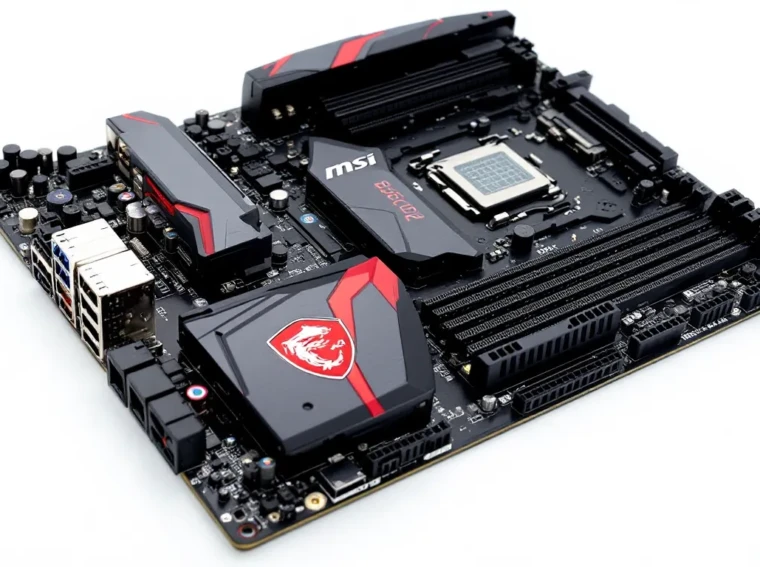
The MSI B350M Gaming Pro hit the market back in 2017 as AMD’s Ryzen platform was turning heads and shaking up Intel’s dominance. This micro-ATX board promised budget gamers a ticket into the AM4 ecosystem without very costly. Fast forward to 2026, and you’re probably wondering whether this aging warrior still has legs, or if it’s time to retire it to the hardware graveyard.
Here’s the thing: the B350M Gaming Pro represents a specific moment in PC gaming history. It was one of the first affordable boards to support Ryzen’s groundbreaking architecture, and thousands of budget builders grabbed one. But nearly a decade later, the platform shows its age in some pretty obvious ways. PCIe 3.0, DDR4, and a VRM design that was modest even at launch all factor into whether this board makes sense today.
This review digs into what the B350M Gaming Pro actually delivers in 2026, from real-world gaming performance with modern GPUs to BIOS quirks, upgrade paths, and whether snagging one used is a smart move or a regret waiting to happen.
Key Takeaways
- The MSI B350M Gaming Pro remains viable in 2026 only for ultra-budget 1080p gaming builds or secondary systems, with realistic CPU pairings limited to Ryzen 5 1600/2600 or Ryzen 7 2700 due to modest VRM design.
- This aging B350 motherboard maxes out at PCIe 3.0 and DDR4 support, leaving performance on the table compared to modern boards offering PCIe 4.0/5.0, DDR5, and USB-C connectivity.
- Used pricing of $25-50 makes the B350M Gaming Pro a logical foundation for esports machines at 1080p with fast DDR4-3200 RAM, though budget B550/B650 boards offer significantly better value and platform longevity.
- Memory speed directly impacts gaming performance on this AM4 platform, with DDR4-3200 CL16 providing the sweet spot for stability and 8-12% FPS gains over DDR4-2400 in CPU-bound titles.
- The board’s weak VRM (4+2 phase with no MOSFET heatsinks) limits sustained overclocking potential, especially with eight-core CPUs, making it unsuitable for heavy workloads or aggressive tuning beyond 4.0-4.1 GHz.
- Upgrading from the B350M Gaming Pro makes sense if seeking modern features, with B550 boards ($60-120 used) or AM5 platforms with Ryzen 7000+ CPUs offering dramatic improvements in gaming, productivity, and future-proofing.
What Is the MSI B350M Gaming Pro?
The MSI B350M Gaming Pro is a micro-ATX motherboard built around AMD’s B350 chipset, designed for first- and second-generation Ryzen processors. Released in Q1 2017, it targeted budget-conscious gamers who wanted solid performance without the premium pricing of X370 boards.
This board sports the AM4 socket, which means compatibility with a surprisingly wide range of Ryzen CPUs, from the original Ryzen 3 1200 all the way up to certain third-gen chips with BIOS updates. MSI positioned it as an entry-level gaming board, complete with their “Military Class” components and Audio Boost technology, though those marketing terms don’t always translate to tangible performance gains.
The micro-ATX form factor makes it a natural fit for compact builds. At 9.6 x 9.6 inches, it slots into smaller cases while still offering enough expansion for most single-GPU gaming setups. MSI included their Click BIOS 5 interface, RGB LED headers, and support for DDR4-3200 memory with overclocking, features that felt premium in 2017 but have since become table stakes.
What separated the B350M Gaming Pro from cheaper A320 boards was its unlocked multiplier support. You could actually overclock your Ryzen CPU and RAM, which mattered a lot during Ryzen’s early days when memory speed heavily impacted performance. MSI also threw in a few gaming-centric features like Killer LAN (E2500) and Nahimic audio software, though opinions on those extras vary wildly.
Key Specifications and Features
Chipset and Socket Compatibility
The B350 chipset sits in the middle of AMD’s original 300-series lineup. It supports CPU and memory overclocking, which the budget A320 boards didn’t, but lacks the extra PCIe lanes and USB ports you’d get from X370. The board uses the AM4 socket, and with the right BIOS version (more on that headache later), it theoretically supports first-gen Ryzen (Summit Ridge), second-gen Ryzen (Pinnacle Ridge), and select third-gen chips (Matisse).
But, CPU support gets messy. Out of the box, this board worked with Ryzen 1000 and 2000 series chips. MSI released beta BIOS versions for limited Ryzen 3000 support, but don’t expect to drop a Ryzen 9 3950X in here and have it run smoothly. The VRM just wasn’t designed for high core counts or the power demands of later chips. Realistically, you’re looking at Ryzen 5 1600, Ryzen 5 2600, or maybe a Ryzen 7 2700 as the sweet spot.
Memory Support and Overclocking
The B350M Gaming Pro features four DDR4 DIMM slots with official support up to DDR4-3200 (OC). Maximum capacity is 64GB, though that’s theoretical, most users max out at 32GB with four 8GB sticks. Early BIOS versions had notorious memory compatibility issues, especially with higher-speed kits. AMD’s first-gen memory controller was finicky, and this board reflected those struggles.
Memory overclocking improved significantly with AGESA updates throughout 2017-2018. By the final stable BIOS releases, hitting DDR4-3000 or 3200 became more reliable, though you still needed Samsung B-die or Hynix CJR chips for best results. Ryzen’s Infinity Fabric architecture meant memory speed directly impacted CPU-to-CPU communication, making fast RAM crucial for minimizing frame time variance in gaming.
Expansion Slots and Storage Options
Expansion is where the micro-ATX format shows limitations:
- 1x PCIe 3.0 x16 slot (full x16 electrical, CPU-connected)
- 1x PCIe 2.0 x16 slot (x4 electrical, chipset-connected)
- 2x PCIe 2.0 x1 slots
The primary slot handles your GPU without bottlenecks for cards up to RTX 4060-level performance. The second x16 slot (physically x16, electrically x4) runs through the chipset and shares bandwidth with other devices, fine for a capture card or Wi-Fi adapter, but forget about SLI or CrossFire.
Storage options include:
- 1x M.2 slot (M key, 2242/2260/2280, PCIe 3.0 x4 and SATA support)
- 4x SATA 6Gb/s ports (two share bandwidth with M.2 when populated)
The single M.2 slot became a bottleneck for users wanting multiple NVMe drives. Using an M.2 SATA drive disables two of the SATA ports, which caught plenty of first-time builders off guard. No PCIe 4.0 means you’re capped at around 3500 MB/s sequential reads with the fastest Gen3 drives, not terrible for gaming, but noticeably behind modern boards.
Connectivity and I/O Ports
The rear I/O panel includes:
- 1x PS/2 combo port (keyboard/mouse)
- 1x DisplayPort 1.2 (for APU use)
- 1x HDMI 1.4 (for APU use)
- 4x USB 3.1 Gen1 (5Gbps)
- 2x USB 2.0
- 1x RJ45 LAN port (Killer E2500 Gigabit Ethernet)
- 5x audio jacks (Realtek ALC892 codec)
- 1x optical S/PDIF out
No USB-C. No USB 3.2 Gen2 (10Gbps). The Killer E2500 NIC was supposed to prioritize gaming traffic, but most users saw negligible benefits over standard Intel NICs. The Realtek ALC892 audio codec is entry-level, fine for gaming headsets, but audiophiles will want a DAC.
Front panel headers provide one USB 3.1 Gen1 connector and two USB 2.0 connectors. There’s also a single RGB LED header (4-pin, 12V) and one Rainbow LED header (4-pin, addressable). MSI’s Mystic Light software controlled these, though compatibility with non-MSI RGB ecosystems was hit-or-miss.
Design and Build Quality
PCB Layout and Aesthetics
The B350M Gaming Pro uses a black PCB with red and gray accents, very 2017 “gaming” aesthetic. MSI’s dragon logo sits near the top edge, and there’s subtle circuit-trace styling printed on the board. It’s not offensive, but it doesn’t have the mature, subdued look of modern boards either.
Component placement is functional but tight. The 24-pin ATX power connector sits at the board’s edge (good), but the 8-pin EPS12V CPU power connector is positioned awkwardly close to the top-left corner. Depending on your case, cable routing can get cramped. The single M.2 slot hides under a small heatsink labeled “M.2 Shield,” though calling it a heatsink is generous, it’s a thin aluminum cover that does minimal thermal work.
The DIMM slots have single-latch mechanisms, and they’re spaced normally for micro-ATX. The SATA ports angle horizontally from the board edge, which is cleaner than right-angle connectors when dealing with chunky GPUs.
Cooling Solutions and VRM Performance
This is where the B350M Gaming Pro shows its budget roots. The VRM (voltage regulator module) uses a 4+2 phase design with no heatsinks on the MOSFETs, just a single heatsink over the PWM controller area. MSI marketed the “Military Class 5” components (dark caps and solid capacitors), but the phase count and lack of active or passive cooling limits overclocking headroom.
With a Ryzen 5 1600 at stock settings, VRM temps stay reasonable, around 60-70°C under sustained load in a well-ventilated case. Push a Ryzen 7 2700 with an all-core overclock to 4.0 GHz, and you’ll see VRM temps climb past 90°C, especially in compact cases with poor airflow. According to testing from Tom’s Hardware, inadequate VRM cooling on budget B350 boards became a common complaint among early Ryzen adopters.
The chipset heatsink is small and purely aesthetic, the B350 chipset doesn’t generate much heat anyway. There are four fan headers total: one CPU fan, one system fan, and two additional chassis fan headers. All support PWM control through the BIOS, which is helpful for tuning noise levels.
Bottom line: the VRM is adequate for mid-range Ryzen chips at stock or mild overclocks. Pushing higher-end CPUs hard or running sustained all-core workloads will stress the board. Adding a small fan aimed at the VRM area helps if you’re serious about overclocking.
Gaming Performance Analysis
CPU Compatibility and Gaming Benchmarks
Pairing the B350M Gaming Pro with a Ryzen 5 2600 (six cores, 12 threads, 3.4 GHz base, 3.9 GHz boost) remains the most sensible CPU choice in 2026 if you’re building or upgrading on this platform. The 2600 offers solid 1080p gaming performance, especially in esports titles where high refresh rates matter more than raw single-thread speed.
In titles like Counter-Strike 2, Valorant, and Apex Legends, a Ryzen 5 2600 paired with a mid-range GPU easily pushes 144+ FPS at 1080p medium-high settings. AAA games like Cyberpunk 2077 or Starfield show the CPU’s age more clearly, expect occasional stutters in CPU-heavy scenes, particularly in busy city areas or complex AI scenarios. Frame times can get inconsistent when the CPU becomes the bottleneck, which happens more often with modern titles optimized for higher core counts and newer architectures.
A Ryzen 7 2700 (eight cores, 16 threads) provides more overhead for multitasking and streaming, but gaming performance doesn’t scale proportionally. The slightly lower boost clocks compared to the 2600X mean you’re not gaining much in pure FPS terms, though frame time consistency improves in heavily threaded games.
First-gen Ryzen chips like the 1600 or 1700 still work but suffer from lower IPC (instructions per cycle) and less mature boost algorithms. You’ll lose 10-15% gaming performance compared to their second-gen counterparts. The TechSpot team has run extensive comparisons showing that generational leaps in Ryzen’s first few years were significant, and downgrading to first-gen chips costs you noticeably in frame pacing.
Graphics Card Pairing Recommendations
The PCIe 3.0 x16 slot handles GPUs up to RTX 4060 Ti or RX 7600 XT territory without meaningful bottlenecks, assuming you’re gaming at 1080p or 1440p. Anything beyond that, say, an RTX 4070 or higher, starts feeling wasted on this platform. The CPU and platform limitations become the constraint before PCIe bandwidth does.
Realistic pairings:
- GTX 1660 Super / RX 6600: Perfect match for 1080p high-refresh gaming. The Ryzen 5 2600 won’t bottleneck these cards in most scenarios.
- RTX 3060 / RX 6650 XT: Solid for 1080p ultra or 1440p medium-high. Some CPU bottlenecking in esports titles at lower settings, but frame rates stay well above 100 FPS.
- RTX 4060 / RX 7600: About as high as makes sense. You’ll see diminishing returns in CPU-heavy games, and upgrading further means the platform itself becomes the limiting factor.
Avoid pairing this board with flagship GPUs like the RTX 4080 or RX 7900 XTX. The Ryzen 2000-series CPUs can’t keep up with those cards’ potential, and you’re effectively handicapping a $600+ GPU with a $50 used motherboard. The math just doesn’t work.
RAM Speed Impact on Frame Rates
Ryzen’s Infinity Fabric ties memory clock speed directly to inter-core communication latency, which makes RAM speed unusually important for first- and second-gen Ryzen gaming performance. Testing shows clear FPS gains moving from DDR4-2400 to DDR4-3200, especially in CPU-bound scenarios.
Expected performance deltas with a Ryzen 5 2600 and GTX 1660 Super:
- DDR4-2400: Baseline performance, but you’re leaving 8-12% FPS on the table in CPU-heavy games.
- DDR4-2933: Noticeable improvement in frame times and 1% lows. Sweet spot for stability if your kit won’t hit 3200.
- DDR4-3200 CL16: Optimal for this platform. Provides the best balance between cost, stability, and performance. Further overclocking yields diminishing returns.
- DDR4-3600+: Technically possible with good B-die kits and BIOS tweaking, but instability increases and gains shrink to 1-3% over 3200.
In esports titles, the difference between 2400 and 3200 can mean 15-20 FPS at 1080p low settings. In GPU-bound AAA games at ultra settings, the gap narrows to 3-5 FPS. Tighter timings (CL14 vs. CL16) also matter, but finding compatible CL14 kits for this board in 2026 is a gamble.
If you’re running this board today, invest in a decent DDR4-3200 CL16 kit, 16GB (2x8GB) is the minimum for modern gaming, though 32GB (2x16GB) future-proofs better for multitasking and memory-hungry titles.
BIOS Features and Overclocking Potential
Click BIOS Interface Overview
MSI’s Click BIOS 5 debuted with this board and offered a graphical UEFI interface that was reasonably intuitive for 2017 standards. It features an EZ Mode landing page with system info, temps, fan speeds, and quick toggles for XMP profiles and boot priority. The Advanced Mode reveals deeper settings for overclocking, voltage control, and peripheral configuration.
Navigation uses either mouse clicks or keyboard arrows, functional but not as snappy as modern BIOS interfaces. The layout separates sections into tabs: OC, M.2/SATA, USB, power management, and boot options. It’s organized logically, though finding specific sub-settings sometimes requires drilling through multiple menus.
MSI included a few software-like features: Game Boost (auto-overclocking presets), A-XMP (AMD’s memory profile implementation), and CPU-Z integration for quick spec readouts. Game Boost is essentially a one-click OC that bumps voltages and multipliers, it works but isn’t as refined as manual tuning. Most experienced users ignored it and went straight to manual settings.
BIOS updates throughout 2017-2019 added AGESA microcode revisions that improved memory compatibility and CPU support. MSI stopped releasing updates around 2020, leaving the board on AGESA 1.0.0.6, which supports most Ryzen 2000 chips and select 3000-series CPUs in beta BIOS versions.
CPU and Memory Overclocking Results
Overclocking headroom depends heavily on your CPU and cooling, but the board’s VRM is the limiting factor for higher-end chips. Here’s what realistic overclocks look like:
Ryzen 5 1600 (14nm, 65W TDP):
- Stock: 3.2 GHz base, 3.6 GHz boost
- Overclock: 3.8-3.9 GHz all-core stable at 1.35-1.375V
- VRM temps: 75-85°C under stress testing with tower cooler and moderate case airflow
- Performance gain: 10-12% in multi-threaded workloads, 5-8% in gaming
Ryzen 5 2600 (12nm, 65W TDP):
- Stock: 3.4 GHz base, 3.9 GHz boost
- Overclock: 4.0-4.1 GHz all-core stable at 1.35-1.4V
- VRM temps: 80-90°C under sustained load
- Performance gain: 6-9% multi-threaded, 3-5% gaming (boost already aggressive)
Ryzen 7 2700 (12nm, 65W TDP):
- Stock: 3.2 GHz base, 4.1 GHz boost
- Overclock: 4.0-4.1 GHz all-core at 1.375-1.425V
- VRM temps: 90-100°C+ under AVX loads, thermal throttling risk is real
- Performance gain: 8-12% multi-threaded, minimal gaming impact
Pushing the 2700 hard on this board isn’t recommended without active VRM cooling. The phase design and lack of heatsinks mean prolonged stress tests can push MOSFETs into thermal protection territory. According to real-world reports from builders over the years, VRM longevity suffers when consistently running eight-core chips with aggressive overclocks.
Memory Overclocking:
Getting DDR4-3200 stable requires patience. Enable A-XMP, load the 3200 profile, and test with AIDA64 or MemTest. If it doesn’t POST, bump DRAM voltage to 1.35V and SOC voltage to 1.05-1.1V. Loosening timings (CL16 to CL18 or increasing tRCD/tRP by one step) often helps with stubborn kits.
Samsung B-die kits (often marked as 3200 CL14 or 3600 CL16) had the best compatibility. Hynix AFR and older Micron chips struggled, especially on early BIOS versions. By 2026, finding known-good B-die kits is harder and pricier, so expect some trial and error with modern kits.
Manual tuning can sometimes push stable speeds to DDR4-3466 or 3600 with tight subtimings, but expect hours of tweaking and testing. For most users, hitting 3200 CL16 and calling it a day is the smart move. The board handles those settings reliably, and the real-world performance difference beyond that is marginal.
Upgrading from B350M Gaming Pro: When Should You Consider It?
Modern Feature Gaps and Limitations
By 2026 standards, the B350M Gaming Pro shows its age in several critical areas:
PCIe 4.0 and 5.0: This board maxes out at PCIe 3.0, which isn’t a dealbreaker for GPUs yet, but NVMe drives see tangible benefits from Gen4 speeds. Modern games with DirectStorage support (like Forspoken, Ratchet & Clank: Rift Apart, or upcoming 2026 titles) load noticeably faster on Gen4 NVMe compared to Gen3. You’re capped at ~3500 MB/s vs. 7000+ MB/s on newer boards.
DDR5 Support: You’re stuck with DDR4, which means missing out on the bandwidth and efficiency gains of DDR5. While DDR5 prices have finally dropped to reasonable levels in 2026, this platform can’t take advantage. For gaming, the real-world delta between fast DDR4 and mid-tier DDR5 is still relatively small, but productivity workloads feel the difference.
USB Connectivity: No USB-C. No USB 3.2 Gen2 (10Gbps) or Gen2x2 (20Gbps). If you’re using modern peripherals, external SSDs, or VR headsets that expect faster USB standards, you’re either using adapters or dealing with slower transfer speeds.
CPU Upgrade Path: The platform officially ends at Ryzen 3000-series CPUs, and even then, support is limited. You can’t drop in a Ryzen 5000 chip without significant workarounds (unofficial BIOS mods that void warranties and risk instability). Modern B550 and B650 boards support Ryzen 5000 and 7000 series, giving vastly more upgrade flexibility.
VRM Limitations: As discussed earlier, the weak VRM design limits overclocking potential and CPU compatibility. If you want to run an eight-core or higher CPU with sustained heavy workloads, this board sweats.
Connectivity and Networking: Gigabit Ethernet is the ceiling here, no 2.5GbE or Wi-Fi options without add-in cards. The lack of integrated Wi-Fi means you’ll need a PCIe or USB adapter, which eats into your limited expansion slots or USB ports.
There’s also no Thunderbolt, no PCIe bifurcation support (useful for multi-NVMe adapter cards), and no modern audio codecs like ALC1220. The board was competitive in 2017, but it’s clearly been lapped by the feature sets on even budget boards from 2024-2026.
Best Budget Replacement Options in 2026
If you’re ready to move on, here’s what makes sense depending on your budget and goals:
Stick with AM4 (Budget Upgrade):
If you want to reuse your Ryzen CPU or upgrade within AM4, the MSI B450 Gaming Pro Carbon AC offers a meaningful step up. Better VRM design, Wi-Fi 5, more robust memory support, and compatibility with Ryzen 5000-series CPUs (with BIOS updates). Prices on used B450 and B550 boards have dropped significantly, and you can often snag a solid B550 board for $60-80 used or $90-120 new.
B550 boards specifically are the sweet spot for AM4 in 2026. You get PCIe 4.0, better power delivery, and full Ryzen 5000 support. Boards like the MSI B550M PRO-VDH WiFi or ASRock B550M Steel Legend offer excellent value and feature sets that’ll last another few years.
Jump to AM5 (New Platform):
If you’re building fresh or willing to invest in a new CPU, RAM, and motherboard, AM5 with B650 boards is the move. Entry-level B650 boards start around $120-150 in 2026, and you get DDR5, PCIe 5.0 (on some models), USB4 support, and a platform that’ll support multiple generations of Ryzen 7000/8000/9000 CPUs.
Pair a Ryzen 5 7600 (around $180) with a budget B650 board and 16GB of DDR5-5600, and you’ve got a system that crushes the B350M Gaming Pro in every metric, gaming, productivity, power efficiency, and future-proofing. Yes, it’s a bigger upfront cost (~$400-450 total for CPU, board, and RAM), but the generational leap is massive.
Intel Alternative:
Intel’s B760 boards offer competitive pricing and support 13th- and 14th-gen Core CPUs. You can build around a Core i5-13400F and B760 board for similar money to an AM5 build, with strong gaming performance and solid platform longevity. According to PCWorld, recent testing shows Intel’s mid-range chips trading blows with Ryzen in gaming, so either path works depending on regional pricing and availability.
Who Should Buy the MSI B350M Gaming Pro in 2026?
Budget Build Scenarios
Let’s be blunt: buying a B350M Gaming Pro brand-new in 2026 doesn’t make sense. It’s a nine-year-old platform that’s been surpassed in every meaningful way. But, if you’re shopping the used market or already own one, there are specific scenarios where it still works:
Ultra-Budget 1080p Gaming PC:
You’re scraping together a gaming rig for under $300 total, using used parts from eBay, Facebook Marketplace, or local sales. Pair the B350M Gaming Pro ($30-40 used) with a Ryzen 5 2600 ($50-60), 16GB DDR4-3200 ($30-40), and a used GPU like an RX 580 or GTX 1060 ($60-80). Throw in a cheap SSD, a basic PSU, and a $40 case, and you’ve got a functional esports machine.
This setup handles CS2, Valorant, Fortnite, and League of Legends at 1080p with high refresh rates. It’s not cutting-edge, but it gets the job done for kids, students, or anyone who just needs a cheap entry into PC gaming.
Secondary/LAN Rig:
You’ve already got a main gaming rig, but you want a second PC for LAN parties, a dedicated streaming box, or a family-room gaming setup. The B350M Gaming Pro can anchor that secondary build without very costly.
HTPC or Emulation Station:
Pair this board with a Ryzen 3 2200G or 3200G (APUs with integrated Vega graphics), and you’ve got a capable home theater PC or retro gaming emulation box. The integrated graphics handle 4K video playback, light PC gaming, and emulation up through PS2/GameCube/Wii without needing a discrete GPU.
Learning/Modding Platform:
If you’re learning to build PCs, practice BIOS tuning, or experiment with overclocking without risking expensive hardware, a cheap B350M Gaming Pro is a low-stakes playground. You can push it hard, learn what works (and what thermal throttles or fails to POST), and not worry about bricking a $200 board.
Used Market Value and Pricing
As of early 2026, the B350M Gaming Pro sells for:
- $25-40 used on eBay, depending on condition and included accessories (I/O shield, box, etc.)
- $30-50 locally through Facebook Marketplace, Craigslist, or hardware swap forums
- Occasionally bundled with a CPU and RAM for $100-150, which can be a decent deal if the components are in good shape
Watch out for listings that lack the I/O shield or have visible damage to the PCB, bent pins in the AM4 socket, or missing DIMM slot latches. Those issues can turn a $30 bargain into a $30 headache.
Red flags when buying used:
- Seller mentions “doesn’t POST” or “needs BIOS update”, likely a bricked board from failed flash or incompatible CPU.
- Heavy dust buildup or visible corrosion around capacitors, signs of poor storage or liquid damage.
- Missing BIOS battery or obviously swapped heatsinks, could indicate previous owner pushed it too hard.
If you’re paying more than $50 for this board in 2026, you’re overpaying. The MSI Z790 Gaming Pro WiFi represents what modern mid-range boards deliver, and even budget B550/B760 boards eclipse the B350M Gaming Pro’s capabilities entirely. It’s a usable board at the right price, but there’s no reason to treat it as anything more than a stopgap or ultra-budget foundation.
Troubleshooting Common Issues
BIOS Update Procedures
Updating the BIOS on the B350M Gaming Pro can fix memory compatibility issues, improve CPU support, and patch vulnerabilities, but it also carries risk if done incorrectly. Here’s how to do it safely:
Preparation:
- Identify your current BIOS version by entering BIOS (press DEL during boot) and checking the top-right corner for the version string (e.g., “7A39v19”).
- Visit MSI’s official support page for the B350M Gaming Pro and download the latest stable BIOS (avoid beta versions unless you specifically need Ryzen 3000 support).
- Format a USB drive to FAT32 and extract the BIOS file directly to the root directory. Rename it to something simple like “B350M.190” if needed.
- Ensure your system is stable, don’t attempt a BIOS update if you’re experiencing crashes, unstable overclocks, or power issues.
Flashing Process:
- Boot into BIOS and navigate to M-Flash (usually found in the “Advanced” or “Settings” menu).
- Select the USB drive and locate the BIOS file.
- Confirm the update and do not power off or reset the system during the flash. The board will reboot automatically when complete.
- After reboot, the BIOS will reset to defaults. You’ll need to reconfigure XMP, boot order, fan curves, and any overclocks.
Troubleshooting failed flashes:
If the board won’t POST after a BIOS update, try clearing CMOS by removing the battery for 30 seconds or shorting the JBAT1 jumper. If that doesn’t work, MSI boards don’t have a BIOS flashback feature, so you’re looking at either using a known-compatible CPU to reflash or RMA/repair services.
Avoid updating unless necessary. If your system is stable and you’re not adding new hardware, there’s little reason to flash newer BIOS versions, especially on a board this old where support has ended.
Memory Compatibility Problems
Memory issues plagued early B350 boards, and the B350M Gaming Pro was no exception. Common symptoms include:
- System won’t POST with XMP enabled
- Random crashes, blue screens, or application errors under load
- Memory running at JEDEC speeds (2133 or 2400) instead of rated speeds
Fixes to try:
- Update BIOS: Early AGESA versions had poor memory training algorithms. Later updates dramatically improved compatibility.
- Manually set timings and voltage: Instead of enabling XMP, manually enter frequency (3200 MHz), voltage (1.35V), and primary timings (16-18-18-38 for most kits). Test stability with MemTest86 or AIDA64.
- Increase SOC voltage: Bump SOC (System on Chip) voltage to 1.05-1.1V. This helps stabilize the memory controller on first- and second-gen Ryzen.
- Use slots A2 and B2: Ryzen’s memory topology works best with RAM in the second and fourth DIMM slots (counting from CPU socket). Check the motherboard manual to confirm the correct slots.
- Lower speed: If 3200 won’t stabilize, try 3000 or 2933. The performance loss is minimal, and stability matters more.
- Check QVL (Qualified Vendor List): MSI published a QVL of tested memory kits. If your kit isn’t listed, compatibility is a roll of the dice.
If you’ve tried everything and stability remains elusive, the issue might be the memory controller on your specific CPU sample. First-gen Ryzen had higher variance in memory overclocking capability, some chips hit 3200 easily, others struggle past 2933.
Boot and POST Error Solutions
Common boot issues and how to fix them:
No POST, no display, fans spin:
- Reseat RAM (try one stick in slot A2 first).
- Check CPU power (8-pin EPS) connection.
- Reseat GPU if using discrete graphics.
- Clear CMOS and retry.
- If still nothing, test with known-good components (different PSU, RAM, or CPU) to isolate the failure.
POST code beeps or error LEDs:
The B350M Gaming Pro uses EZ Debug LEDs (CPU, DRAM, VGA, BOOT) near the 24-pin connector. Check which LED is lit:
- CPU LED: CPU not detected, reseat CPU, check for bent pins, verify CPU compatibility.
- DRAM LED: Memory issue, follow memory troubleshooting steps above.
- VGA LED: GPU not detected, reseat GPU, check PCIe power cables, try integrated graphics if using APU.
- BOOT LED: No bootable device, check boot order in BIOS, verify SSD/HDD connections.
System boots to BIOS but won’t load OS:
- Check boot priority, ensure your OS drive is first in boot order.
- Test drive in another system to verify it’s not a failed SSD/HDD.
- Rebuild boot partition using Windows installation media or Linux live USB.
Random reboots or crashes:
- Check VRM temps with HWiNFO64, if temps exceed 100°C, improve airflow or reduce CPU voltage/clocks.
- Test RAM stability with MemTest86 (run for at least 4 passes).
- Check Windows Event Viewer for error codes (Kernel-Power 41, WHEA errors, etc.).
- Ensure PSU is adequate, cheap or failing PSUs cause all sorts of instability.
If you’re experiencing persistent issues after trying these fixes, the board itself might be failing. Capacitors degrade over time, VRM components can die from prolonged heat stress, and BIOS chips can corrupt. At this board’s age and price point, replacement often makes more sense than extensive troubleshooting.
Conclusion
The MSI B350M Gaming Pro served its purpose well in 2017-2019 as an affordable entry point into the Ryzen ecosystem. It gave budget builders access to overclocking, decent memory support, and enough features to build a capable 1080p gaming rig. Nearly a decade later, though, the board’s limitations are impossible to ignore.
In 2026, this board only makes sense if you’re buying used for an ultra-budget build, already own one and are deciding whether to upgrade, or need a secondary/experimental system. For anyone building a new gaming PC from scratch, modern B550, B650, or B760 boards deliver vastly better performance, features, and longevity for reasonable money. The platform’s lack of PCIe 4.0, limited CPU support, weak VRM, and outdated connectivity make it a poor foundation for anything beyond basic 1080p gaming.
If you’re running a B350M Gaming Pro today and it’s working fine, there’s no urgent need to upgrade, unless you’re hitting specific limitations like NVMe speed, CPU bottlenecks, or compatibility issues with modern hardware. Pair it with a Ryzen 5 2600, 16-32GB of DDR4-3200, and a mid-range GPU like an RX 6600, and you’ve still got a functional esports machine.
But if you’re shopping for a motherboard in 2026? Skip this one. The B350M Gaming Pro is a relic of Ryzen’s early days, interesting from a historical perspective, usable in the right context, but eventually outclassed by nearly everything that’s come since. For a more modern take on budget gaming boards, the Asus Z170 Pro Gaming platform (though Intel-based and also aging) at least offers more robust feature sets. The AM4 and AM5 platforms have evolved so much that holding onto first-gen boards just doesn’t make practical sense anymore.